Parameters
Parameters can be added to a report to allow the user to narrow down the results which are returned based on the selected values for the parameter(s).
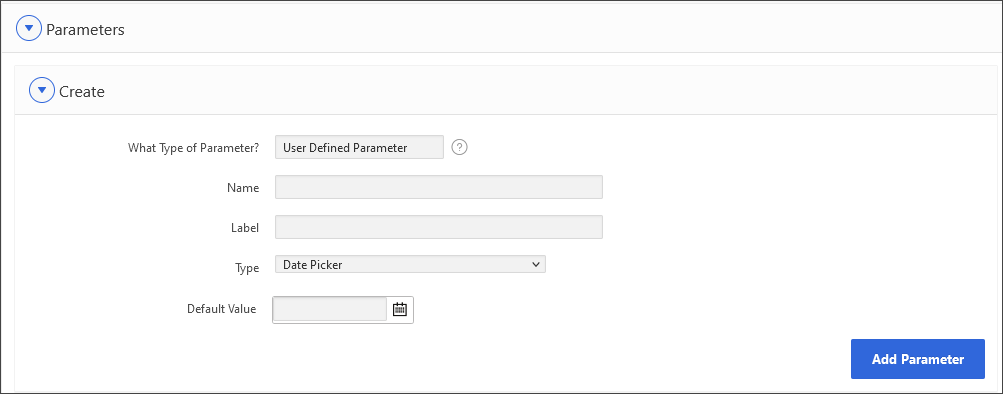
To create a parameter, navigate down to the Create Parameters section of the Edit Report page.
The parameter name is what can be used to reference the parameter within the calculated fields and rules. This should not contain any spaces. It will be referenced with a preceding colon, e.g. create parameter “paygrp”, then reference it within a rule as “:paygrp”.
The Label is the prompt which will display on the report next to the parameter.
The Default Value is the parameter value which will default as the selection for the parameter at runtime. It is optional. Users can choose to run the report using the default value or select a different value.
There are 5 different types of parameters:
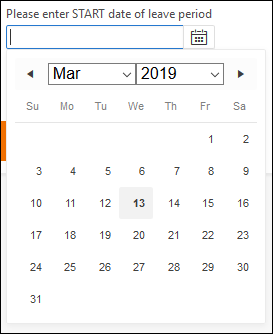
1. Date Picker - Click on the  button of your date parameter to open the date picker. Choose the month from the drop down list, and select the year from the drop-down list. Click on the day to set the date for the parameter.
2. The values displayed in the list for the Year have upper and lower limits set by CON_DEFs. APEX_DATE_PICKER_MAX_YEAR sets the maximum year displayed. The default is 2999. APEX_DATE_PICKER_MIN_YEAR sets the minimum year displayed. The default is 2000.
The forward/backward navigation buttons can still be used to navigate month-by-month and select the date. Date parameter can also be set by typing in the date in format dd-mon-yyyy.
Plain Text - This is a free-text field with no lookup.
Select List based on Query - this is a single or multi-select list based on a user specified SQL query. This query needs to include 2 columns in the SELECT clause, the label and the value.
For example: For a taxation report, to provide a list of paycodes where paytype = ‘T’, you would create a select list with a query such as:
selectp.paycode || ' - '|| c.description, p.paycode
from ah_pepaycd p, ah_codes c
wherep.paytype = 'T'
and c.kind = 'PAYCODE'
and c.code = p.paycode
orderby 1
Select List based on a Column - this is a single or multi-select list based on a column from the report.
 Note: Users should take care when creating parameters based on a Column as this will query the data from the reporting table. This can impact on the time the report page will take to load for larger tables. For example, when listing paycodes for a report based on the AH_PAY table, the query for the list will select distinct pay code from AH_PAY. An alternative to this option, which will perform better, would be to create the parameter list from a query based on the AH_CODES table where kind = PAYCODE.
Select List based on comma delimited values -this is a single or multi-select list based on a hard-coded list of values provided when the parameter is created.
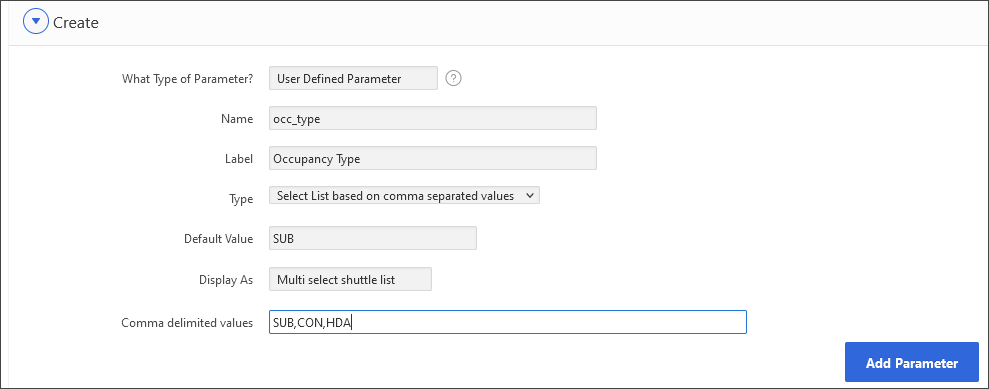
For select lists, there are two options when creating the parameter:
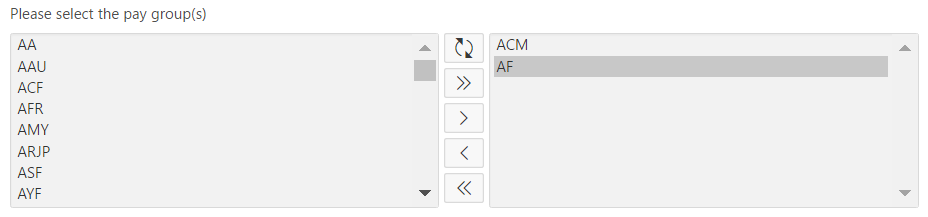
Multi select shuttle list - this allows the user to select more than one value from the list in which to report from. For example:
Single selection list - this only allows the user to select one value from the list to report on. For example:

Existing parameters can be edited via the Existing Parameters section of the Edit Report page:
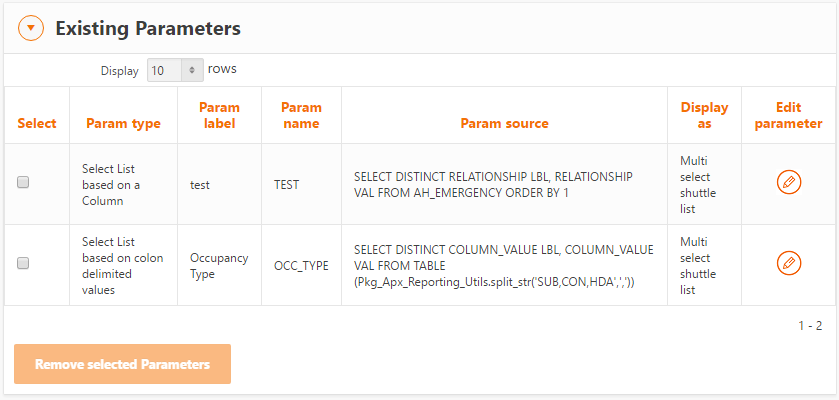
To delete a parameter, check the select box(s) and then click on Remove selected Parameters button.
To edit an existing parameter, click on the edit icon on the right next to the parameter.