Running a Report
Depending on how you are accessing aPay, you can run a report through one of the following methods:
a. If you are running directly through WSS or the Power User Interface, when you select the report to run it will automatically connect you to Extend and run the report for you. Parameter values can be entered once the report page displays.
Otherwise, you will access running reports from the aPay Extend Menu via the following options:
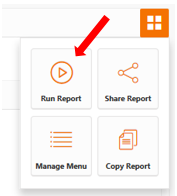
b. Four-box grid
From the four-box grid you will be prompted to choose a report by clicking on the  button.
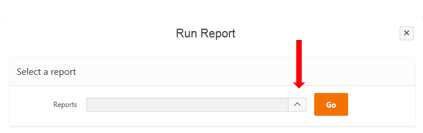
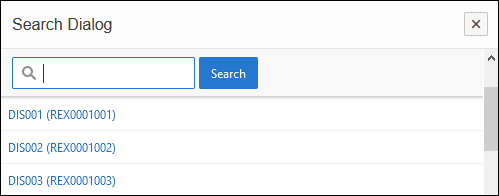
This will open a pop-up box where you can search or scroll to find the report you’d like the run. This can be from your ‘My Reports Menu’ or ‘My Reports Workspace’.
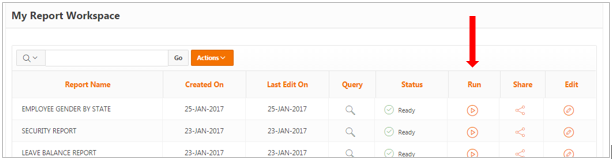
c. My Reports Workspace
You can execute the Run icon next to the report you’d like to select.
d. Within the report edit screen (depending on your access)
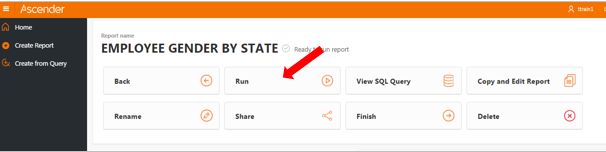
e. From the aPay Extend ‘My Report Menu’, go to the required menu under ‘Ceridian Reports’ and right click on the report name to see the shortcut menu. Select ‘Run’ to launch the report. Alternatively, click the run icon as shown below.
You will need to expand the menu and click on the report you’d like to run.
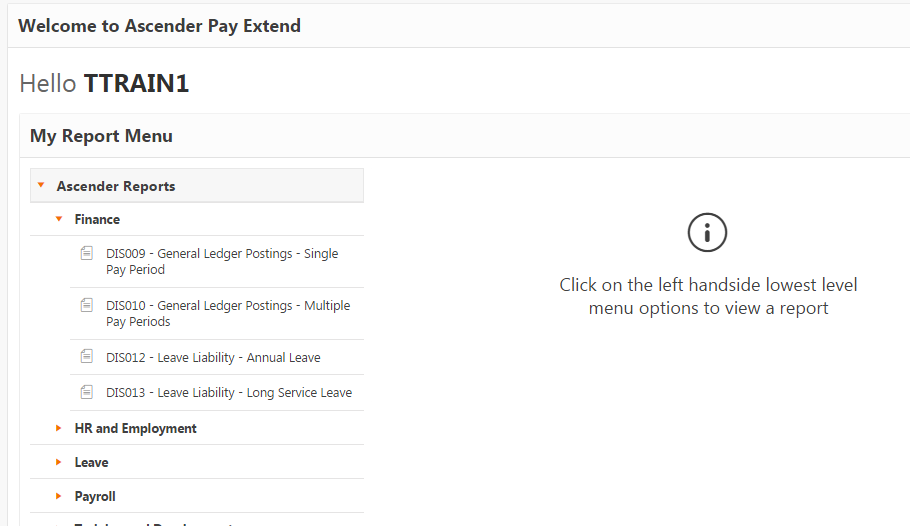
This will then show you the actions which you can undertake in the report action section. You will find the run icon there.
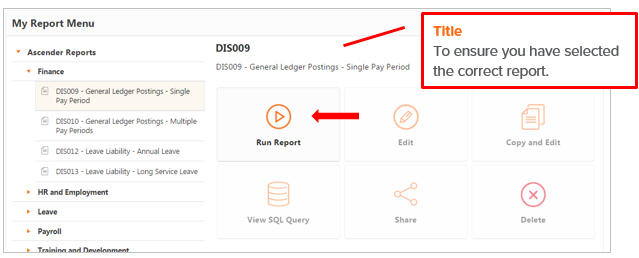
Click on Run Report.
If the report has parameters, the parameters will display at the top of the report. Select/enter the parameter values, and then click on the ‘Refresh’ button to display the data.
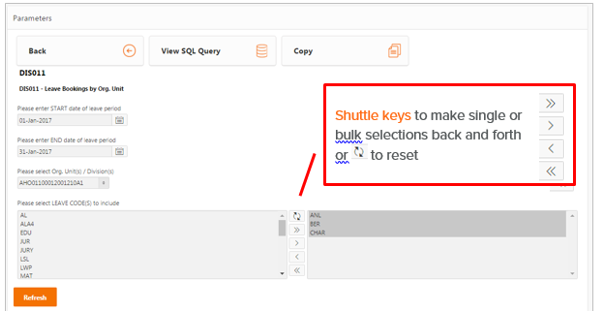
Click on the ‘Refresh’ button to load the data.