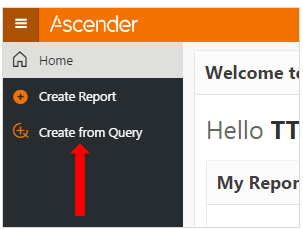
Create from Query
This option can be used to create reports from SQL queries, by either copying the query into the report wizard or by writing a new query.
To begin, select the Create from Query option from the menu.
Name your Report and select the source of your query - either Load Query from file, or Write a Query.
To Write a Query, select the radio button for that option to open the query box.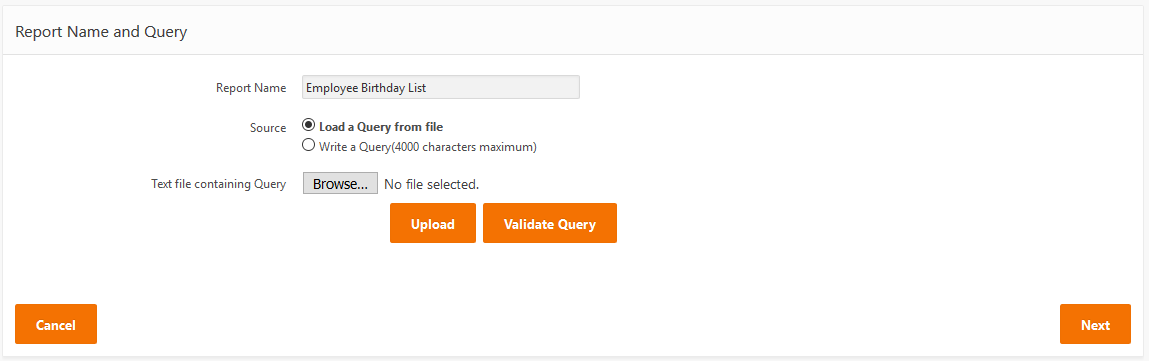
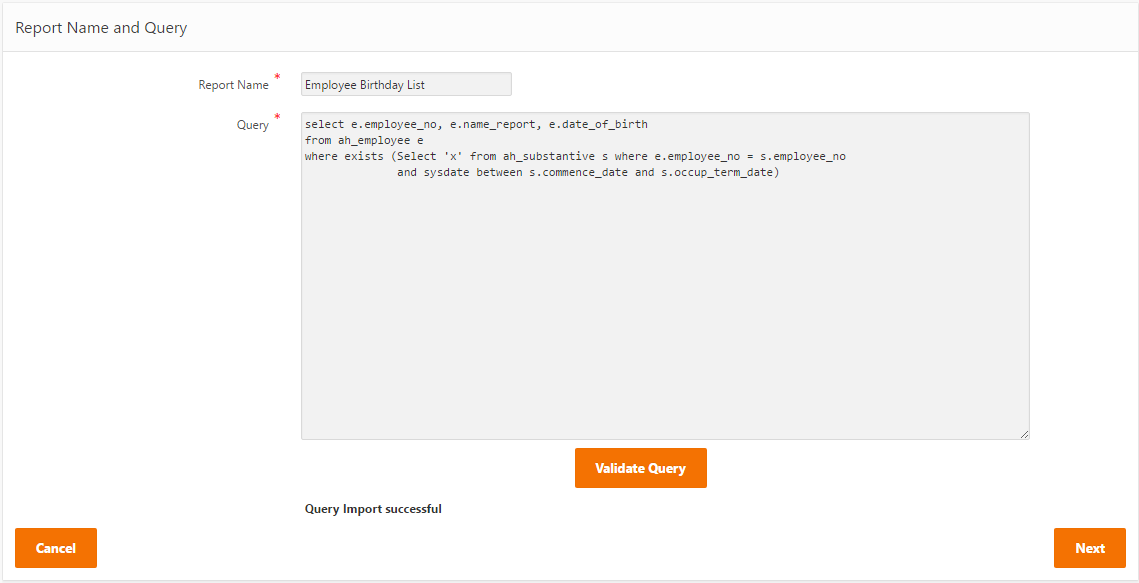
Enter or copy/paste your query into the Query box.
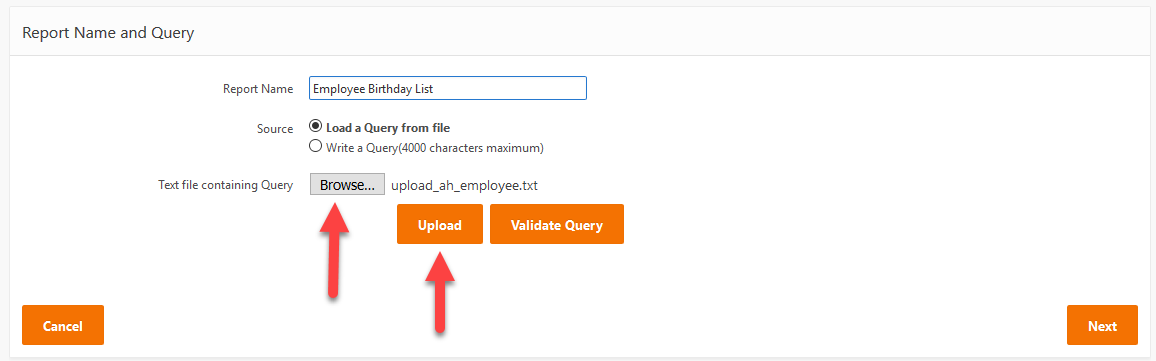
To load your Query from a file, click on the Browse button to locate and select your text file, then click Upload.
Use the Validate Query button to ensure there are no errors. The Validate must be successful to proceed.
 Please note: You should not end your query with a semicolon “;”. This may cause the validation to fail.
When loading a query from a file, the query must be validated after successful upload of the query file, as that function triggers the scanning of the query. Failing to validate will result in an empty report without any associated query.
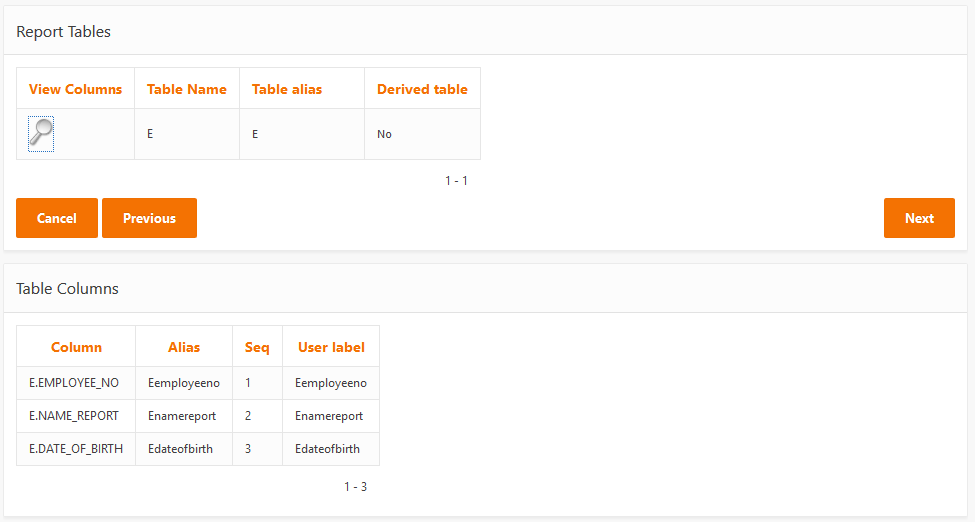
Press Next to view the tables and columns selected.
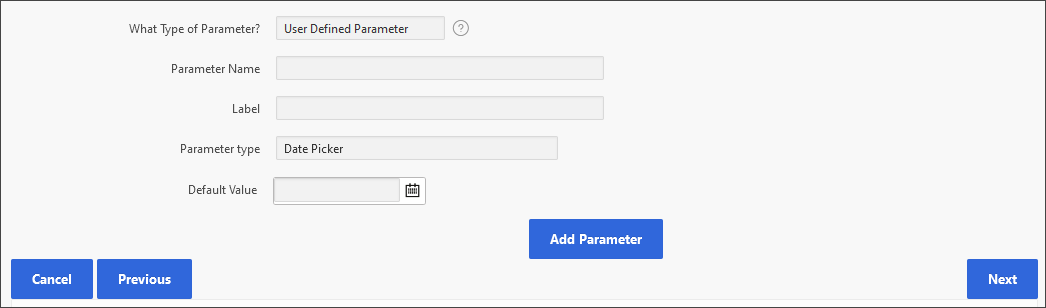
Add Parameter(s) if required. Note: Edit report to add associated rule for a parameter.
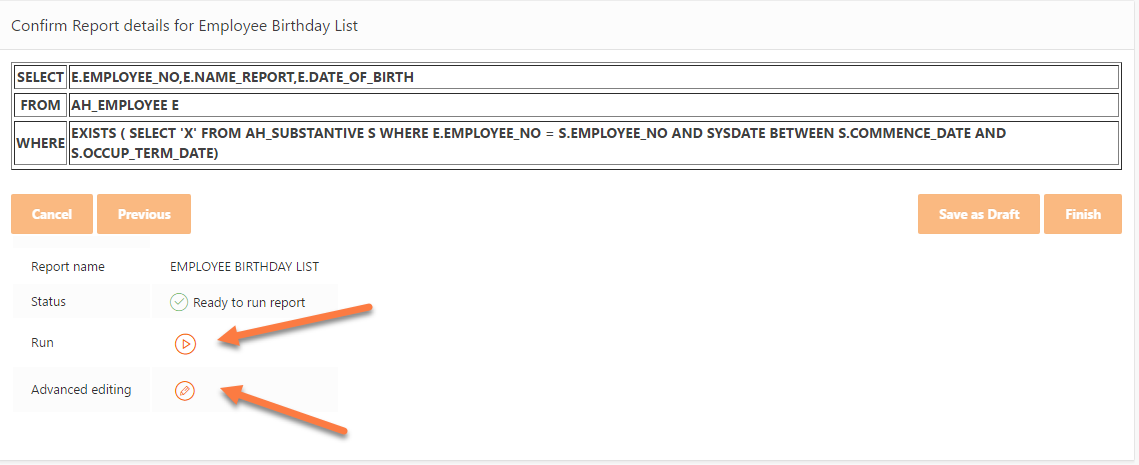
Confirm Report Details.
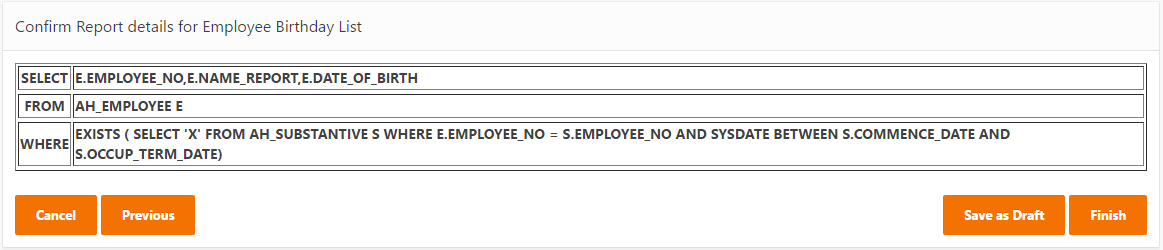
Click on Save as a Draft button to edit again before running the report or click the Finish button to generate the report.
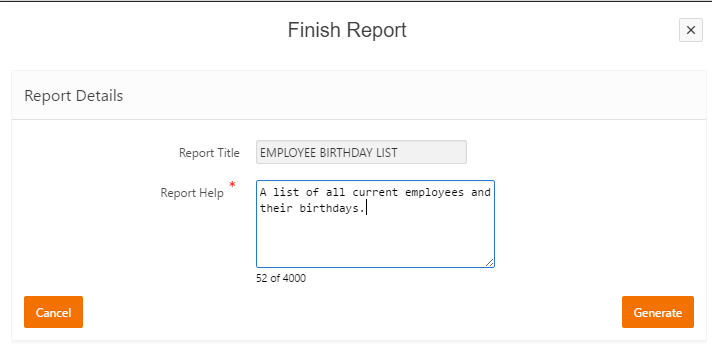
Once the report is finished, you can run or edit it immediately.
Your report will be added to your ‘My Reports Workspace’.
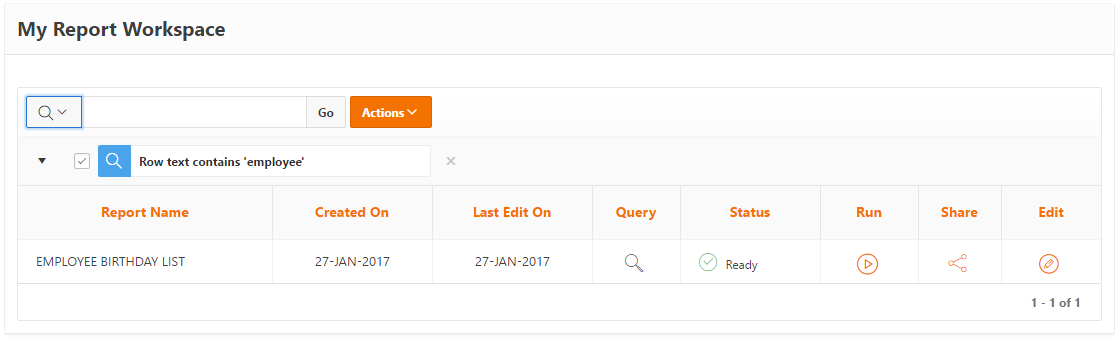
Use Menu Management to add a Report to My Reports menu. Please refer to Maintaining Menus in aPay Extend.